To download completed copies of your form submissions, all of the following conditions must be satisfied:
-
You must have created an account and be logged in. Completed copies cannot be downloaded if you use the "Continue as Guest" option.
-
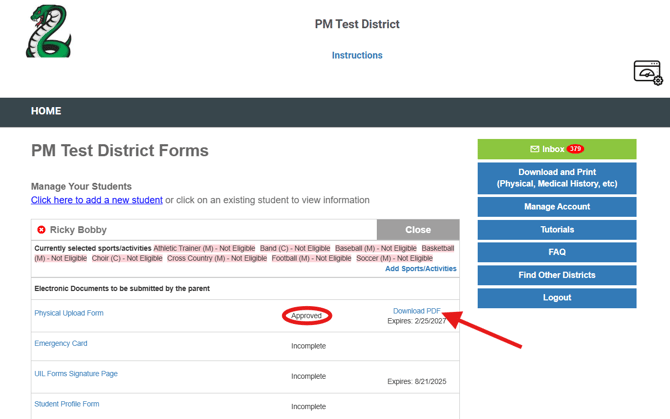
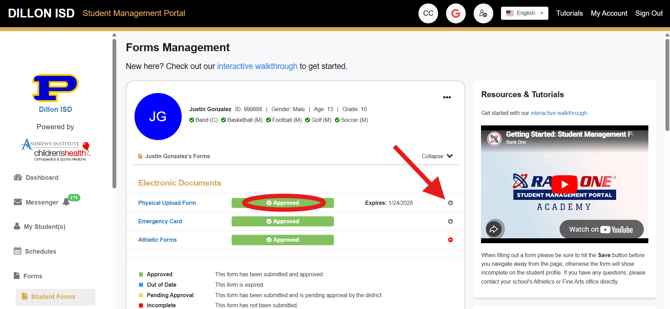
The form requirement must display a status of **Approved**. If the status is **Incomplete** or **Pending**, a completed copy will not yet be available for download.
-
The form must have been submitted electronically or uploaded into the system by your school’s staff. If the requirement was only marked as completed manually and no electronic copy was uploaded, a completed copy will not be available for download.
Once these conditions are met, an option to download a completed copy of the form will appear to the right of the form requirement name. Depending on the software version used by your school or district, this will appear as either a **Download PDF** button or a gray download icon with a downward arrow. If neither option is visible, at least one of the above conditions has not been met.
Please refer to the screenshots below for visual examples of how it appears when completed copies of forms are available for download.